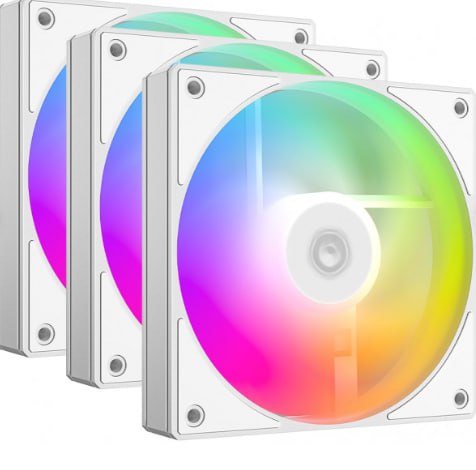
If you’ve ever wondered how to sync ARGB fans so every color wave rolls across your case in perfect unison, you’re in the right place. The secret isn’t magic, it’s understanding header pins, matching the right connectors, and planning a simple layout. This beginner-friendly guide walks you through ARGB vs. RGB, where to plug what, how to wire multiple fans, and the exact software settings that make it all work.
Understand ARGB vs. RGB And Header Pin Types
3-Pin 5V D-RGB (Addressable)
Addressable RGB (often labeled ARGB, D-RGB, or 5V D_LED) uses a 3-pin, 5V header: +5V, Data, Ground. Each LED is individually controllable, which is how you get chasing and rainbow effects that move across strips and fan rings. The plug typically has one missing pin position and a keyed notch so you can’t (shouldn’t) misalign it. Common header names: 5V_D_LED, ADD_HEADER, JRAINBOW, D_LED.
Two notes that save headaches: don’t force it onto a 4-pin 12V header, ever, and don’t reverse the arrow on the plug. That arrow usually aligns with +5V (check your manual to be sure).
4-Pin 12V RGB (Non-Addressable)
Standard RGB (sometimes called 12V RGB or 4-pin RGB) sends fixed channels for red, green, and blue plus a 12V line. Everything on the chain shows the same color at once, no per-LED effects. Pinout is +12V, G, R, B. The connector is a straight 4-pin layout and should only ever go into a 12V RGB header.
If your fans only have this 4-pin RGB plug, you can still sync color, but it’s basic: solid colors, breathing, static gradients, no fancy per-LED animations.
Fan Power vs. Lighting Headers
Easy to mix up: the fan motor connects to a 3- or 4-pin fan header (SYS_FAN/CHA_FAN/CPU_FAN) for power and speed control, while the lighting connects to a separate ARGB/RGB header. Lighting won’t work from a fan power header, and fan motors won’t run from lighting headers. Many fans have two cables, one for power (PWM/DC) and one for lighting. Plug both.
Identify Your Motherboard And Fan Connectors
Locating 5V_D_LED, ARGB, JRAINBOW, And D_LED Headers
Open your motherboard manual (PDFs are searchable, use “LED” or “RGB”). Typical brands label 5V addressable headers as 5V_D_LED (ASUS: ADD_GEN2), JRAINBOW (MSI), D_LED1/2 (Gigabyte), or ADD_HEADER. These sit near the board’s edges for easy cable runs. 12V RGB headers might be labeled RGB_HEADER or JRGB.
Reading Pin Labels And Keyed Plugs
Headers often print tiny labels on the PCB: +5V/D/G for ARGB or +12V/G/R/B for RGB. The ARGB plug has a blocked spot, don’t try to jam that into a 4-pin RGB header. Look for an arrow on the fan’s ARGB cable: it usually points to +5V on the board. Double-check orientation before power-on.
Compatibility Checklist
Before you wire anything, confirm:
- Your fans’ lighting connector type (3-pin 5V ARGB vs. 4-pin 12V RGB).
- Your board has matching headers (and how many).
- Any included hubs or splitters match the connector type and voltage.
- You’ve got enough header capacity for the total LED count (details below).
Plan Your Sync Layout
Daisy-Chaining vs. Hubs/Controllers
Many ARGB fans support daisy-chaining with an in/out connector, letting you run a single line to the header. It’s clean, but long chains can hit current or signal limits. Hubs or controllers gather multiple fan ARGB leads into one device, often with SATA power to offload current from the motherboard. If your case includes a hub, use it, it simplifies cable management dramatically.
Power And Header Limits (LED Count, Amps)
Motherboard ARGB headers typically support around 2–3A at 5V (check your manual). A common worst-case for addressable LEDs is up to 0.06A per LED at full-bright white. That means:
- 24 LEDs in a fan ring ≈ 1.44A per fan at absolute max.
So two such fans could already approach a 3A limit. Real-world draw is usually lower with effects, but plan for worst-case. If your math says you’ll exceed the header, use a SATA-powered hub/controller. For 12V RGB, the current is shared across channels: many boards rate those at up to 3A as well, manuals vary.
Mixing Brands And Protocols
ARGB is a protocol class (serial data line) rather than one universal plug standard. Most PC ARGB gear plays nice with motherboard headers, but some brands (e.g., Corsair iCUE ecosystems) use proprietary hubs and wiring. If your fan has a unique 4-pin lighting plug that doesn’t match 5V_D_LED, you’ll need its brand controller or a specific adapter. Don’t mix 5V ARGB with 12V RGB hardware on the same chain, voltage mismatch can kill LEDs instantly.
Step-By-Step Wiring
Single Fan To An ARGB Header
- Connect the fan motor cable to a SYS_FAN/CHA_FAN (or your controller’s PWM hub). 2) Connect the fan’s 3-pin 5V ARGB cable to the motherboard’s 5V addressable header, aligning the arrow with +5V. 3) Route the cable cleanly and avoid sharp bends. 4) Power on and test with a default rainbow, most boards light up immediately.
If your fan is 12V RGB, connect the 4-pin RGB plug to the 12V RGB header instead: effects will be non-addressable.
Multiple Fans With Splitters Or Hubs
For two to six fans, a simple ARGB splitter can work, but count LEDs and current. Many splitters pass power from the motherboard header, so they don’t increase available current, just connections. For bigger setups, an ARGB hub with SATA power is safer. You’ll connect all fan ARGB leads into the hub, power the hub via SATA, and run a small data lead from the hub to a single 5V ARGB header. The motherboard still controls effects, but the hub supplies the juice.
Pro tip: keep cable runs short and avoid star-shaped chains with long branches: a neat hub-centered layout reduces signal issues.
Using A SATA-Powered ARGB Controller
Some controllers do more than split, they generate effects, remember profiles, and sometimes include a remote. You typically:
- Power the controller with SATA.
- Plug each fan’s ARGB lead into the controller.
- If the controller supports motherboard sync, connect its 3-pin data input to a 5V ARGB header (SYNC or MB IN). If not, you’ll set modes via its app/remote, separate from the motherboard.
This is common with ecosystems like Corsair Commander/Core or certain case-bundled boxes. When a controller doesn’t pass through motherboard data, you won’t sync with board software, your lighting will be controller-only unless you use an integration or a compatible bridge cable.
Software Setup And BIOS Options
Enabling Header Control In BIOS/UEFI
Some boards require enabling the LED controller or specific headers in BIOS/UEFI. Look for LED, RGB, Aura, or “Onboard LED” settings. Set the header type correctly (5V addressable vs. 12V RGB) and enable “Follow software” or “On” so Windows utilities can take over. Save and reboot.
Syncing With Aura Sync, Mystic Light, RGB Fusion, And Polychrome
Install your motherboard’s software: ASUS Armoury Crate/Aura Sync, MSI Mystic Light, Gigabyte RGB Fusion, or ASRock Polychrome. After installation, scan for devices, then assign effects. For ARGB, choose addressable effects like Rainbow, Color Cycle, or Marquee. If you used a hub connected to the ARGB header, the entire chain will follow the same program, and chasing effects will propagate down the line.
iCUE And Third-Party Controllers
If your fans are from the Corsair ecosystem, you’ll likely use iCUE with a Corsair hub (Lighting Node, Commander Core/Pro). These typically don’t plug directly into motherboard ARGB headers. You can either run all lighting under iCUE (and optionally sync with supported motherboard integrations) or choose motherboard control for non-Corsair gear and keep Corsair on iCUE. Trying to interconnect proprietary lighting cables to 5V headers without proper adapters is a fast way to void warranties.
Troubleshooting And Safety
Common Symptoms And Fixes
- No lights at all: Verify the fan’s lighting cable is on a 5V ARGB header (not 12V RGB), arrow aligned to +5V, and the BIOS/software LED setting is enabled. Try another known-good header.
- Wrong colors or flicker: Polarity or pin offset is common, re-seat the connector. On long chains, reduce brightness or switch to a powered hub.
- Only first fan lights: Addressable data signal isn’t passing. Check the “out” to “in” direction on daisy-chain links and ensure the hub’s sync cable is connected to the correct header.
- Random behavior after sleep: Update motherboard RGB software and firmware: disable fast startup or let the LED service control power state.
Polarity, Voltage, And ESD Precautions
Never connect a 3-pin 5V ARGB plug to a 12V RGB header, instant damage is likely. Match the arrow to +5V and avoid offsetting pins. Power down and unplug the PSU before changing wiring. Touch the case frame to discharge static, and avoid yanking on slender LED leads: pull from the connector body.
When To Use An External Controller
Use a SATA-powered controller when your LED count approaches or exceeds a header’s current rating, when you need more ports, or when you want advanced effects without loading your system with multiple RGB apps. If you’re mixing ecosystems or running a showcase build with high brightness, a controller keeps things stable and cool while still letting you sync via a single motherboard data line (if supported).
Frequently Asked Questions
What’s the difference between ARGB and RGB header pins?
ARGB uses a 3-pin 5V header (+5V, Data, Ground) that lets you control each LED individually for chasing and rainbow effects. RGB uses a 4-pin 12V header (+12V, G, R, B) where all LEDs show the same color. Never plug a 3-pin 5V ARGB cable into a 12V RGB header.
How do I sync ARGB fans with motherboard header pins?
Connect each fan’s motor cable to a SYS_FAN/CHA_FAN header, then plug the 3‑pin 5V ARGB cable into a 5V addressable header, aligning the arrow with +5V. Enable LED control in BIOS, install your board’s RGB software (Aura, Mystic Light, RGB Fusion, Polychrome), scan for devices, and apply an addressable effect to sync ARGB fans.
Can I daisy-chain multiple ARGB fans on one header, and how many?
Yes, if your fans support in/out ARGB links. Most motherboard ARGB headers are rated around 2–3A at 5V. Plan worst-case: roughly 0.06A per LED at full white; a 24‑LED ring can near 1.4A. If your total approaches the header limit, use a SATA‑powered ARGB hub/controller for safe current delivery.
Why aren’t my ARGB fans lighting up or syncing?
Check that the lighting cable is on a 5V ARGB header (not 12V RGB) and the arrow aligns with +5V. Ensure LED control is enabled in BIOS and your RGB software detects the header. Reseat connectors to fix color/flicker, verify daisy-chain direction, and consider a powered hub for long chains or high LED counts.
Will ARGB fans work with any CPU platform (Intel or AMD)?
Yes. ARGB syncing depends on your motherboard’s headers, not the CPU brand. As long as the board includes a 3‑pin 5V addressable header (labeled 5V_D_LED, JRAINBOW, D_LED, ADD_HEADER, etc.), your ARGB fans can sync. Install the matching motherboard software for control and effects.
What’s the best software to sync ARGB fans across brands?
Use your motherboard suite (ASUS Aura/Armoury Crate, MSI Mystic Light, Gigabyte RGB Fusion, ASRock Polychrome) when fans connect to board headers. For ecosystems like Corsair, their hubs use iCUE. If you’re mixing hardware, OpenRGB can help on many devices, but compatibility varies—verify device support before relying on it to sync ARGB fans.
No responses yet